Category: Code
-
How to authenticate to TM1 with TM1py
This article explains the different authentication method to TM1 with TM1py:
-
Save time testing TM1 security with impersonation
Setting the TM1 security data is a critical part of any IBM Planning Analytics project. TM1 gives developers a lot of flexibility in terms of security. If your TM1 applications have hundreds of TM1 users, testing the security is time-consuming. This article explains how the TM1 impersonation feature can save time when testing TM1 users’…
-
TM1py v1.6 is now available
The TM1py community is growing bigger and bigger. For each release, we can see the number of contributions increasing. For v1.6, we would like to thank @rkvinoth, @scrambldchannel, @andreyea, @adscheevel, @wimgielis, @rclapp for contributing code to this release, and many others for reporting bugs and requesting features.
-

Exporting changes by users to CSV file
Pulse will log all of the changes whether they are through a migration package or manually. This information can be easily retrieved from the Pulse web client (go to Change Tracking > Change History and then choose the instance):
-
Including control objects and bedrock processes to source control and relationship diagrams
Control objects and Bedrock processes are not included by default in the source control and the relationship diagrams features.
-
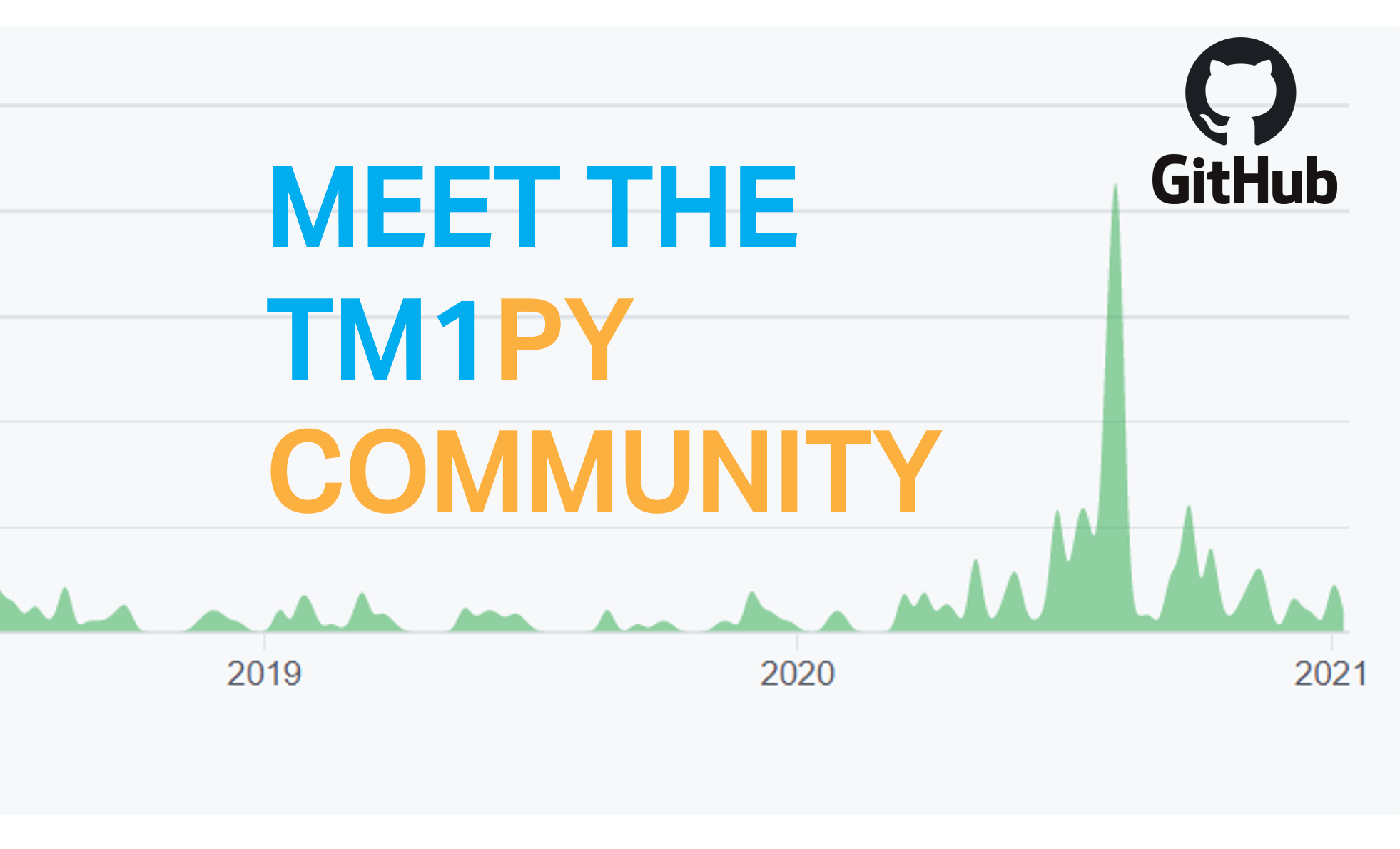
Meet the TM1py community
Since its official first release in 2016, the TM1py project evolved from a framework created and maintained by one person to a community project that is currently powering many TM1 applications.
-
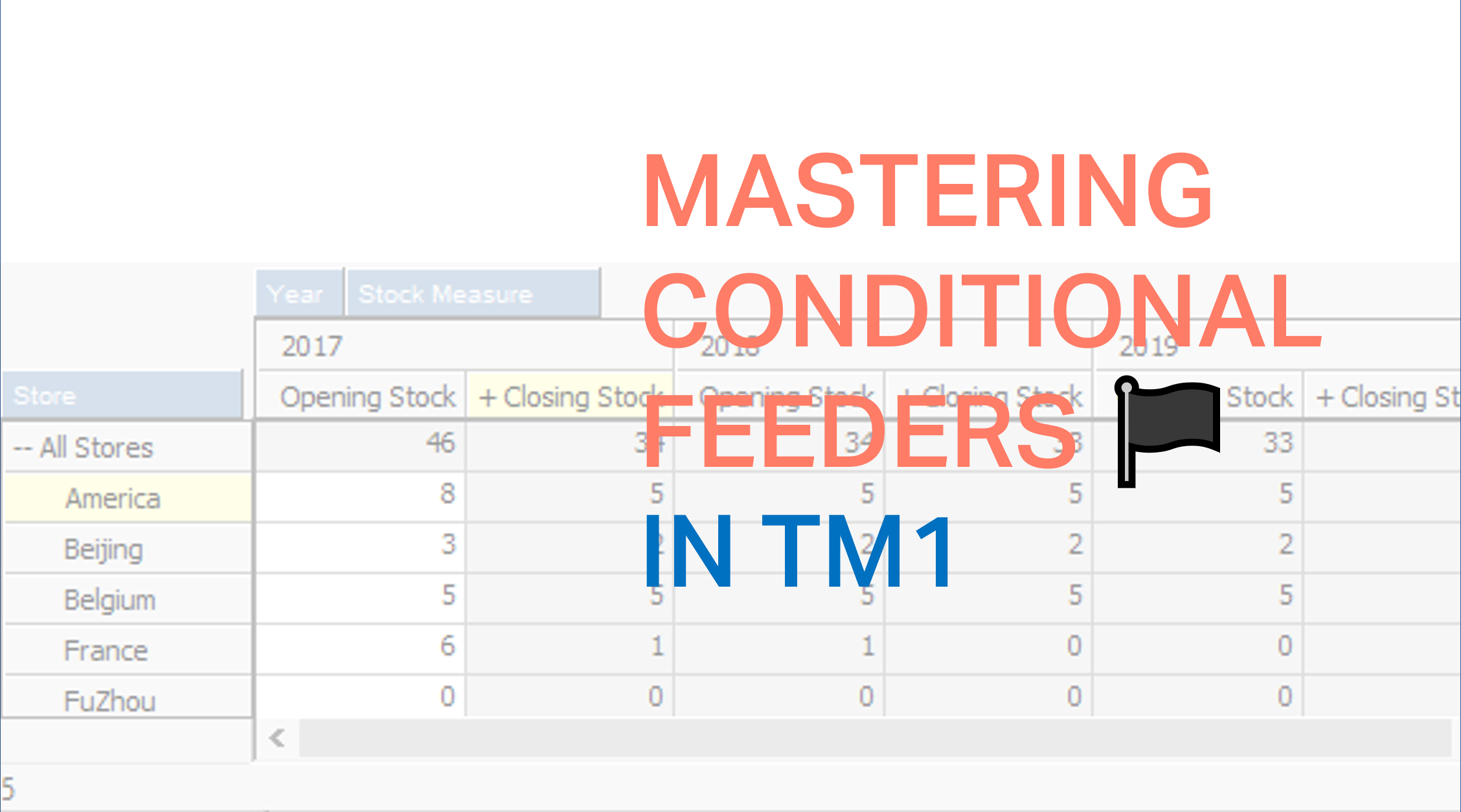
Mastering conditional feeders in TM1
This article gathers everything you should know about conditional feeders in IBM Planning Analytics powered by TM1.
-
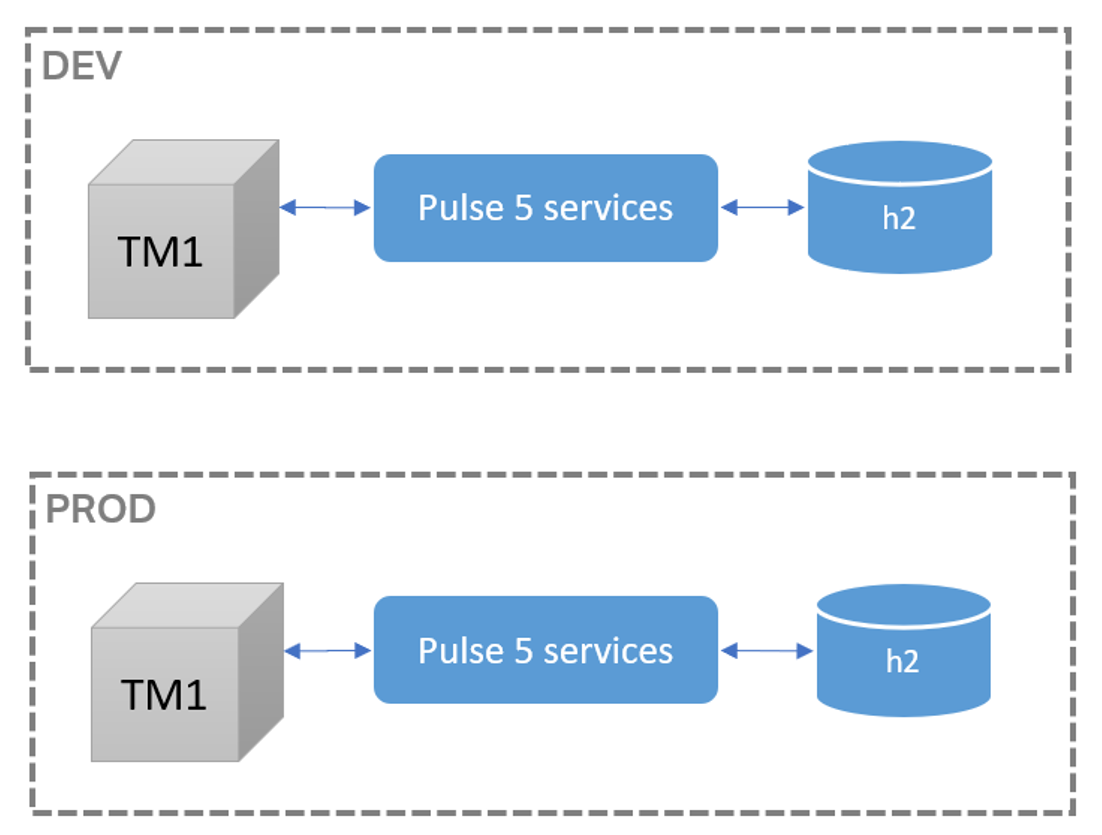
Migrating Pulse v5.x history into Pulse v6.x
This article explains the steps to migrate Pulse 5 data from one server to a new server where Pulse 6 is installed.
-
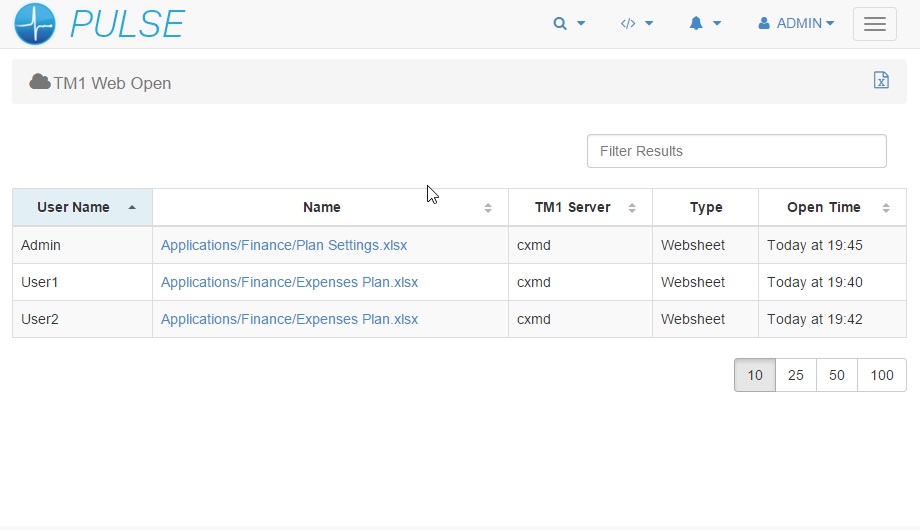
Enable TM1 Web Logging to Pulse v6.x
Pulse for TM1 allows you to track how TM1 Web is being used, each time a user moves between web sheets and cube views it is logged to the Pulse database. Quickly see the current open web sheets so you can determine what is causing long running queries or slowing the system.
-
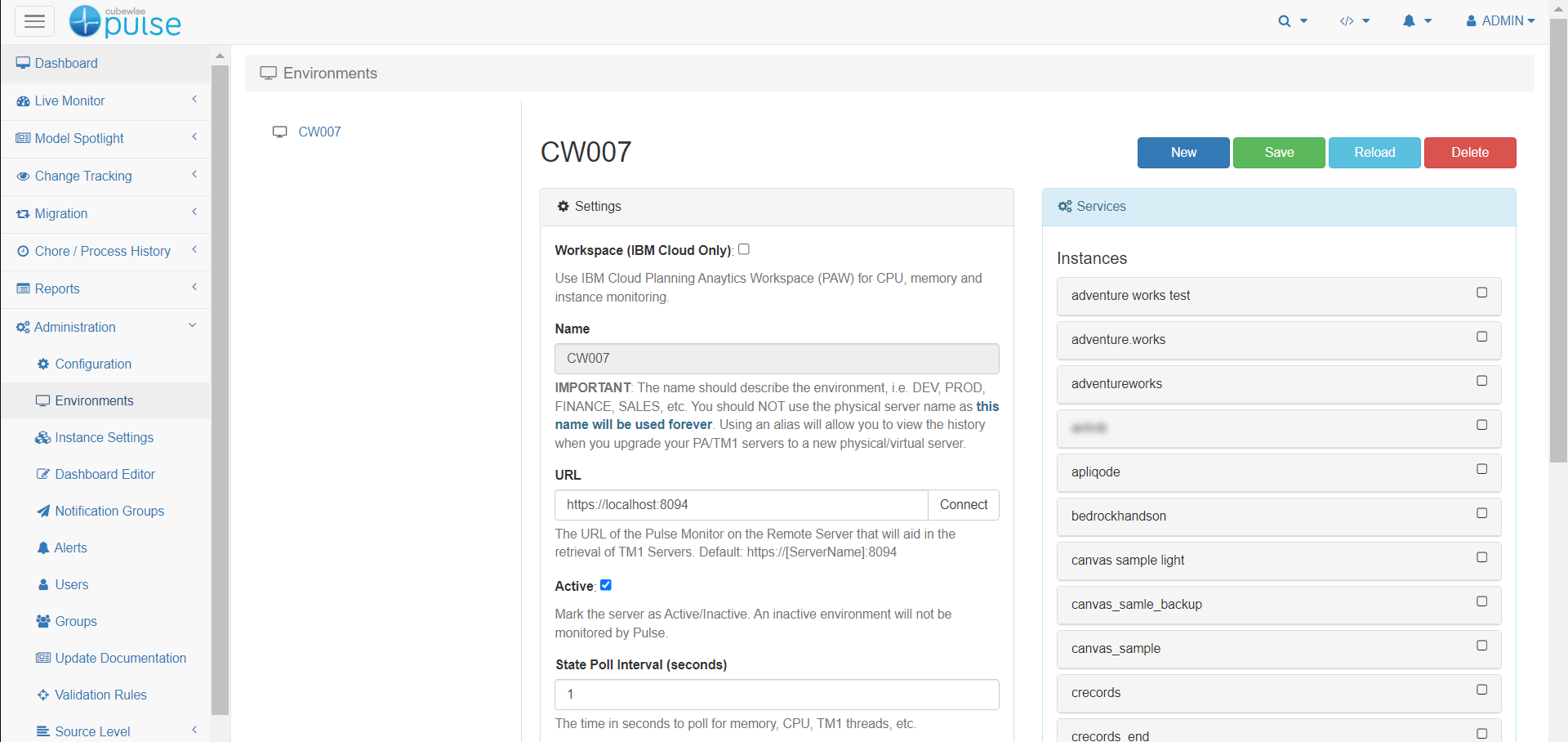
Connecting a Pulse Monitor
Once the Pulse Monitor has been installed on a separate server, the next step is to connect it to the main Pulse Application Server.