Category: How To
-
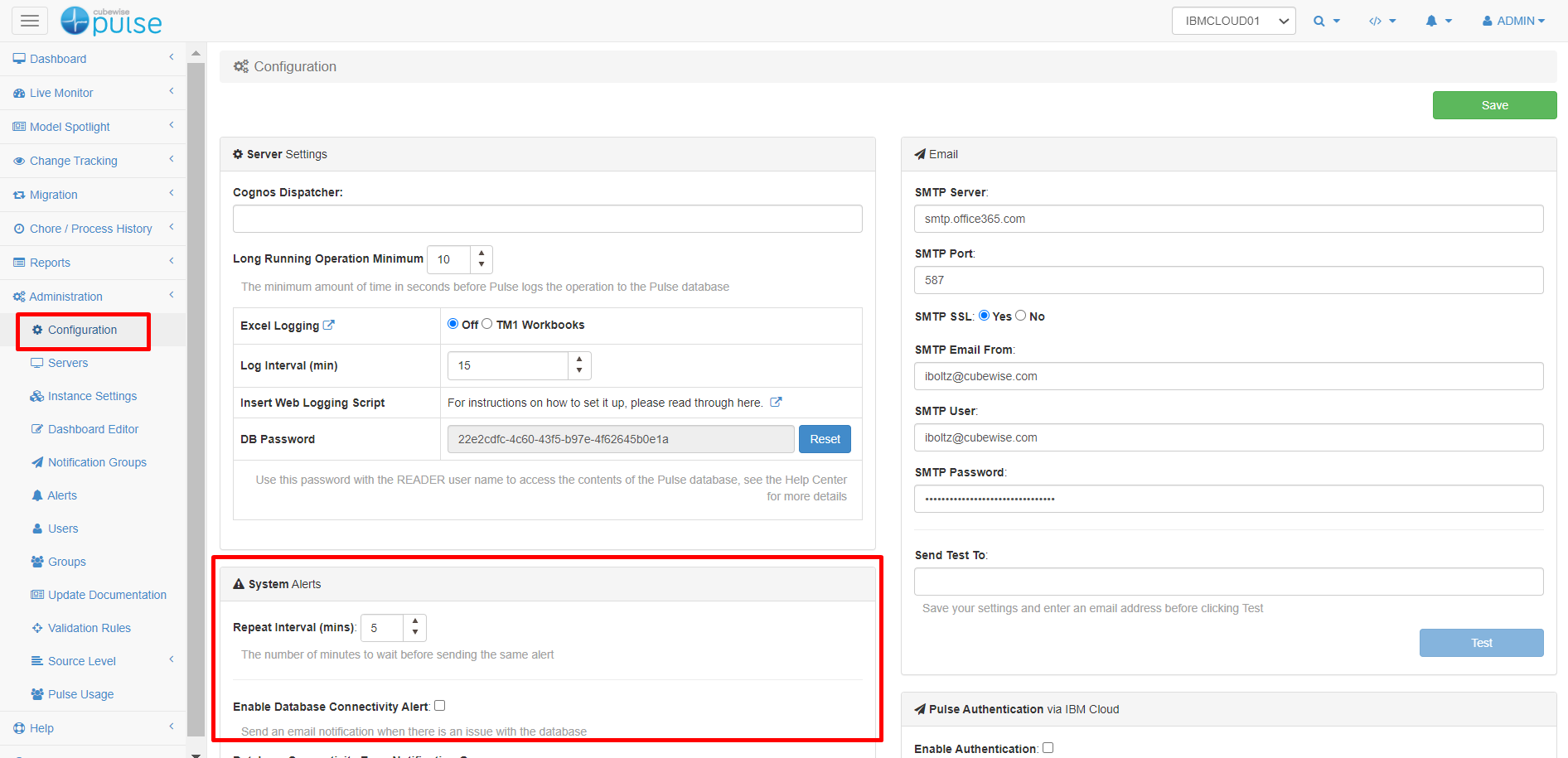
Enabling Pulse system alerts.
Pulse v6 introduced system alerts to get a notification when one component of Pulse is not working.
-
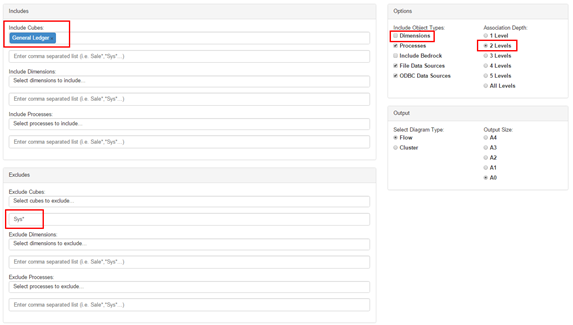
Executing the Pulse Flow Diagram
The flow diagram displays your model in a graphical way helping you to understand how data flows between objects. Pulse is able to automatically determine relationships in rules, feeders and Turbo Integrator processes. The flow diagrams from your models will help you to understand how the objects interact.
-
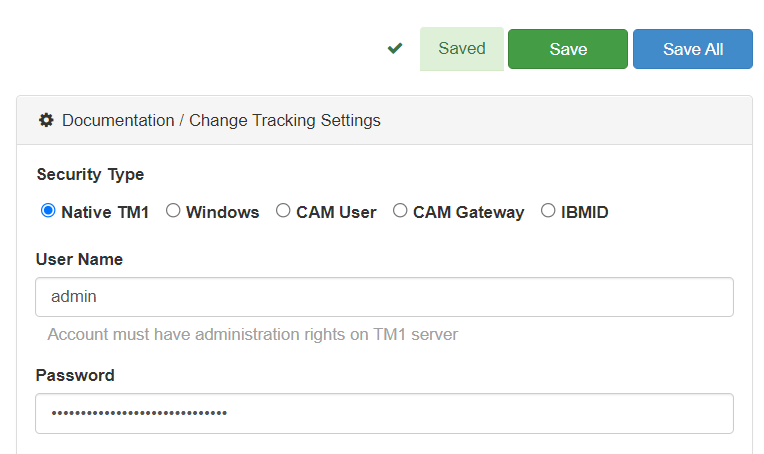
Connecting Pulse to a TM1 instance with native TM1 security (mode 1)
This article explains how to connect Pulse to an IBM Planning Analytics (TM1) instance using security mode 1 (Native TM1 security).
-
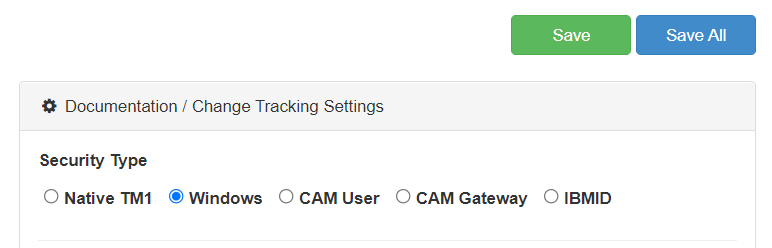
Connecting Pulse to a TM1 instance with Windows security (mode 2 and 3)
This article explains how to connect Pulse to an IBM Planning Analytics (TM1) instance using security mode 2 and 3 (Windows Authentication).
-
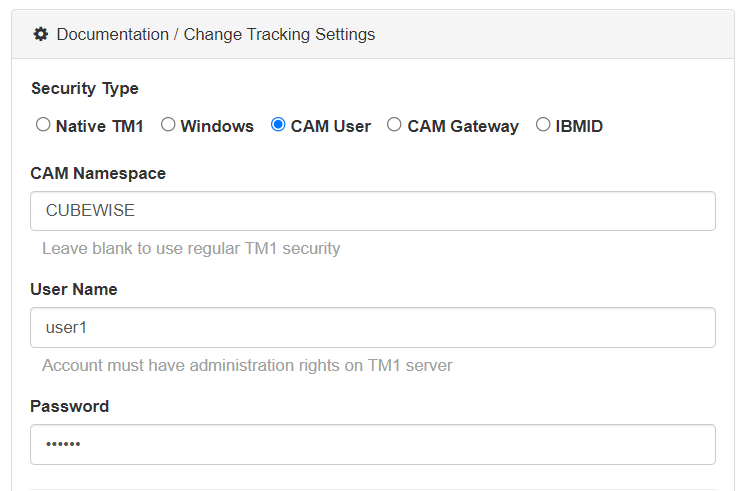
Connecting Pulse to a TM1 instance with CAM security (mode 4 and 5)
This article explains how to connect Pulse to an IBM Planning Analytics (TM1) instance using security mode 4 and 5 (CAM security).
-
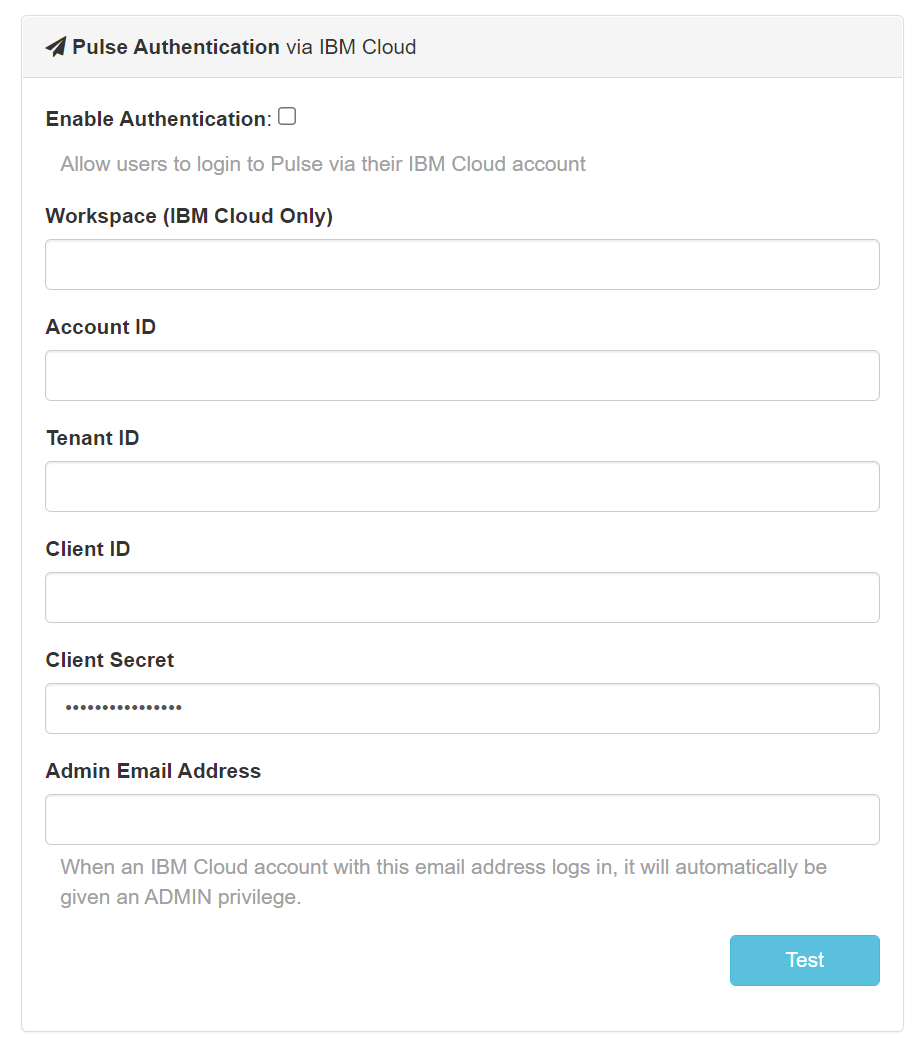
Using IBM ID to login to Pulse
When Pulse is monitoring IBM Planning Analytics (TM1) hosted on the IBM Cloud, starting with Pulse v6.0.3, you can now use your IBM ID to login to Pulse.
-
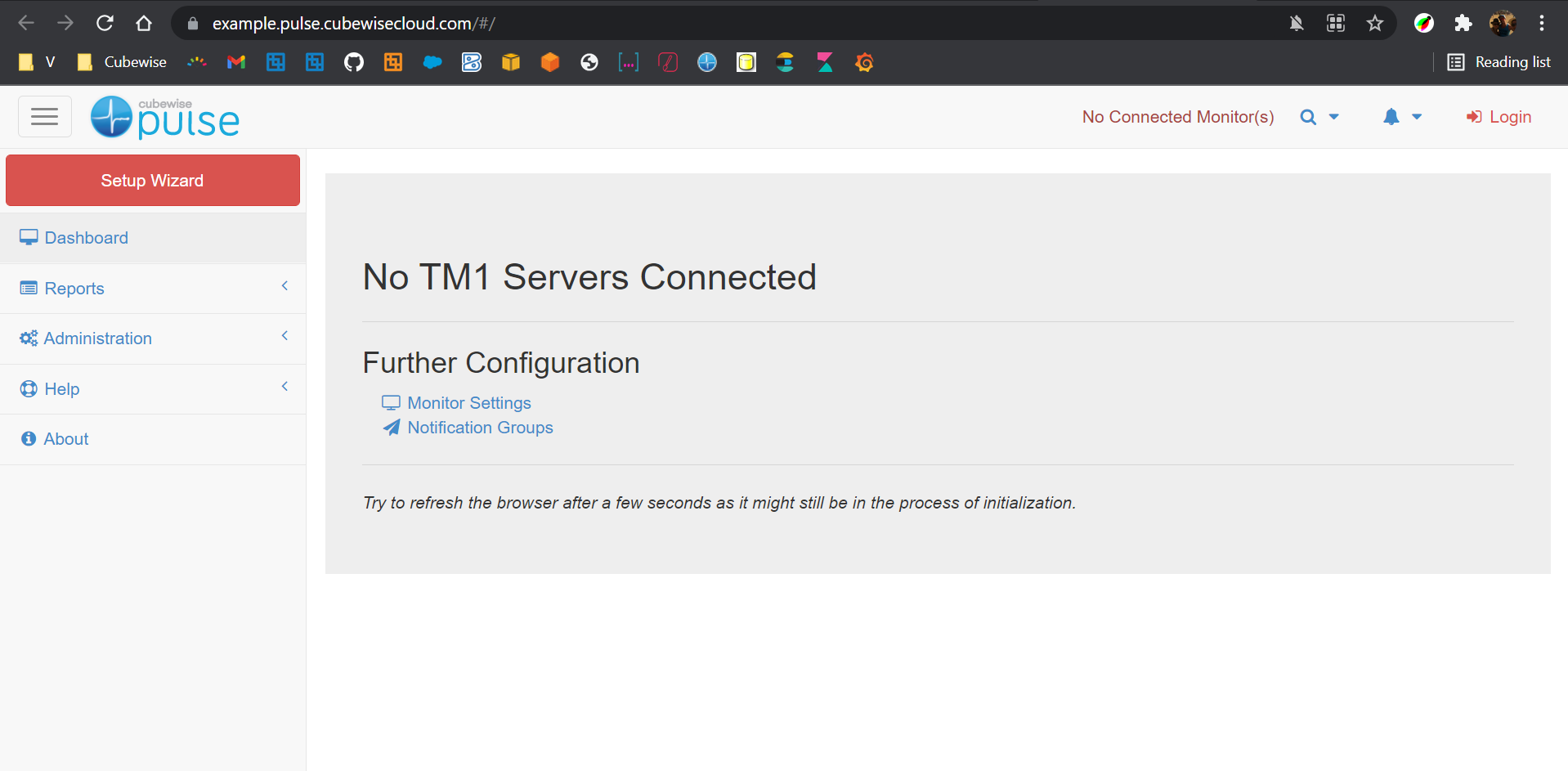
Getting started with Pulse on the Cubewise Cloud
This article gathers the steps that need to be completed when using Pulse on the Cubewise cloud monitoring IBM Planning Analytics SaaS:
-
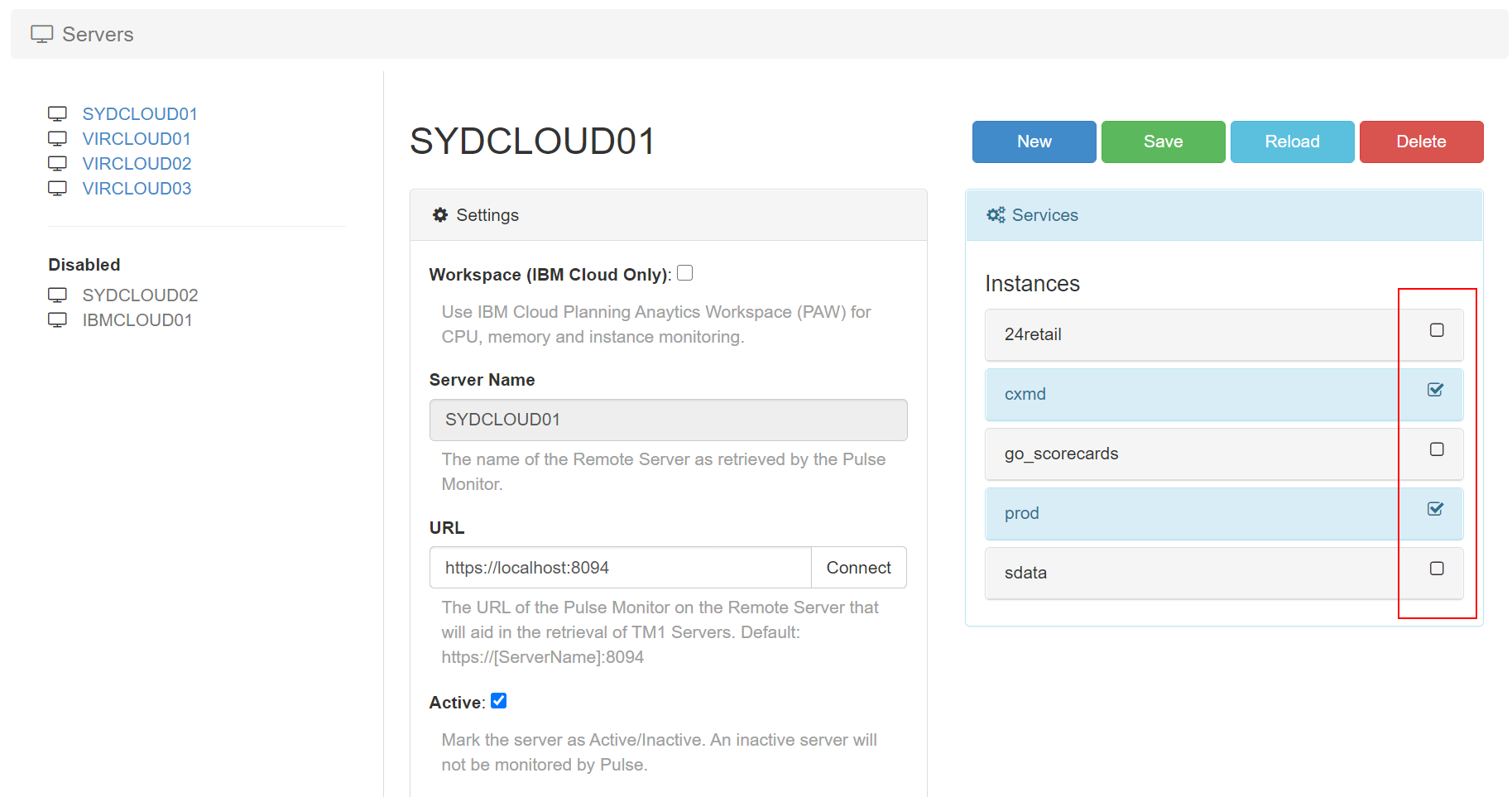
Choose which instance should be monitored by Pulse
Pulse v6.0.1 introduces a new Active flag per TM1 instance. By default all TM1 instances will be set to Active. Pulse monitors all TM1 instances with Active flag set to true.
-
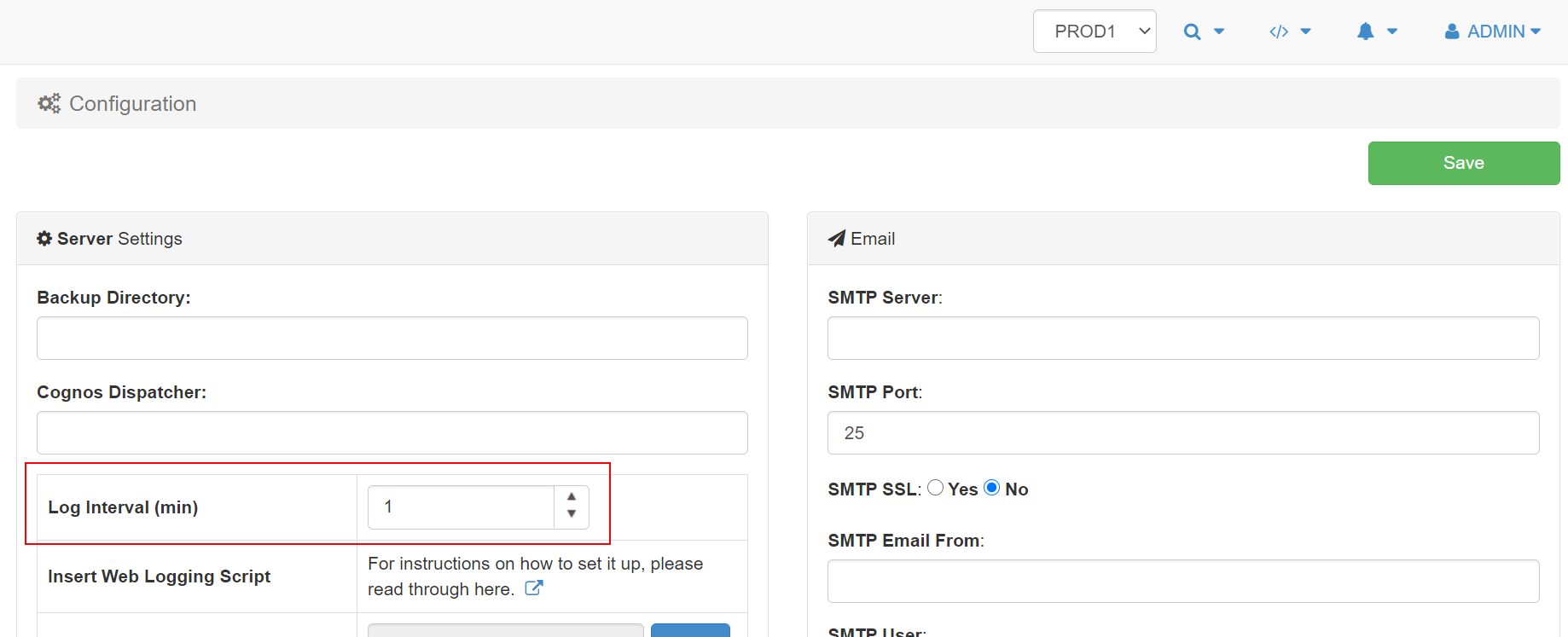
Set the maximum minutes of data cached in the browser
By default Pulse keeps 15 min of history in the browser to enable the playback feature from the Live Monitor page.
-

Exporting changes by users to CSV file
Pulse will log all of the changes whether they are through a migration package or manually. This information can be easily retrieved from the Pulse web client (go to Change Tracking > Change History and then choose the instance):